Introduction: Navigating Domain Migration and Multi-Domain Architectures
Whether you are rebranding your online venture, consolidating multiple regional web properties, or safeguarding brand identity by acquiring common misspellings and alternate top-level domains (TLDs), mastering domain redirection and domain mirroring is a foundational skill for every webmaster and systems architect.
A poorly managed domain change can decimate years of accumulated Google search rankings, break inbound backlinks, and trigger confusing SSL certificate errors that frighten prospective visitors. Conversely, an impeccably engineered redirection preserves 100% of your link equity, seamlessly updates search engine indexes, and guarantees zero downtime for your audience.
In this comprehensive, production-grade guide, we explore the critical differences between redirecting and mirroring domains, demonstrate step-by-step configurations using Hostinger's hPanel, analyze server-level .htaccess and NGINX rewrite rules, and lay out the essential SEO protocols required to protect your organic traffic.
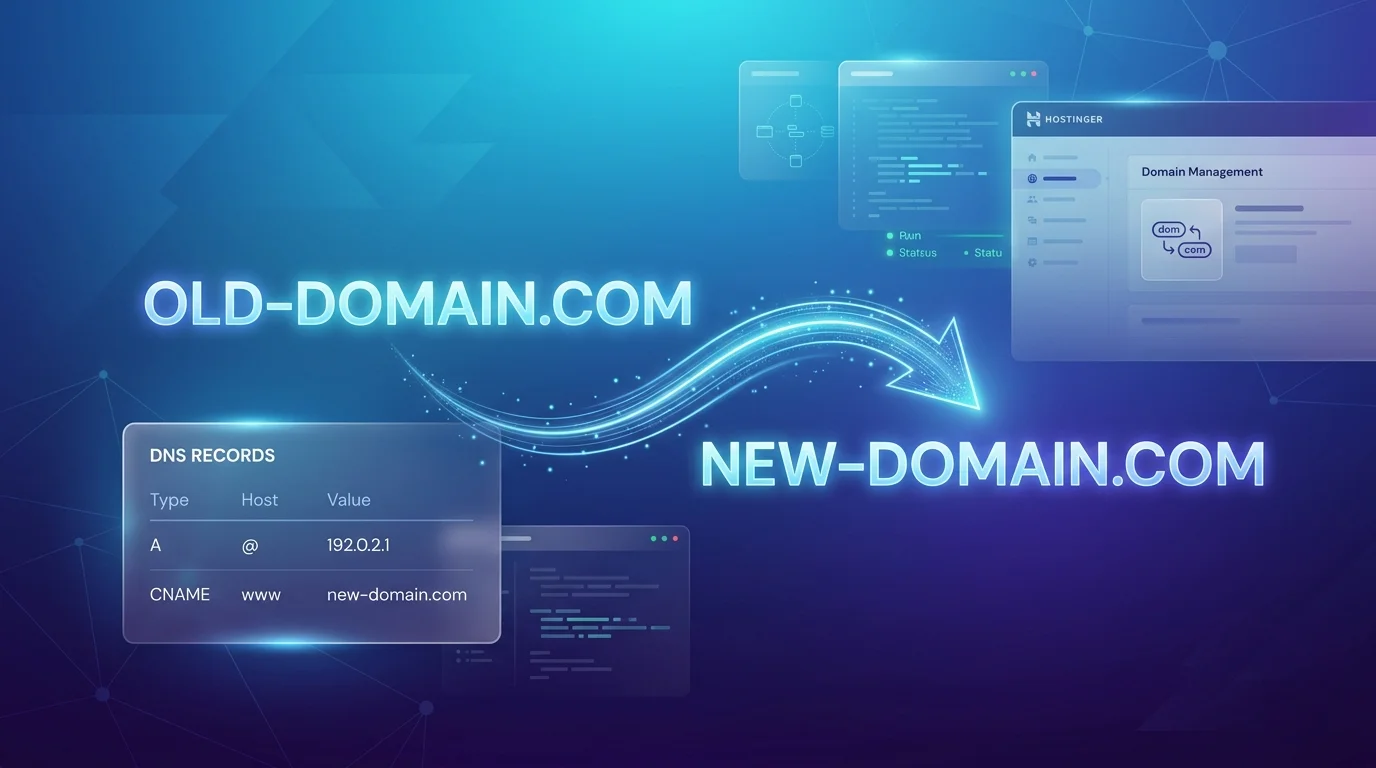 Figure 1: Orchestrating seamless 301 redirects between domains using modern DNS and hosting control panels.
1. Domain Redirection vs. Domain Mirroring: Understanding the Difference
Before modifying DNS records or editing web server configuration blocks, it is vital to differentiate between these two distinct mechanisms:
🔄 Domain Redirection (HTTP 301 / 302)
When a visitor or web crawler requests old-domain.com, the web server immediately returns an HTTP status code instructing the client browser to navigate to new-domain.com.
- Browser Address Bar: Automatically updates to show the new domain.
- SEO Impact: Transmits 95–99% of accumulated PageRank and backlink value to the new URL.
- Primary Use Case: Permanent company rebranding, merging websites, or retiring legacy domains.
🪞 Domain Mirroring (Parked / Domain Alias)
Multiple domains (e.g., brand.com, brand.net, brand.co.uk) point directly to the exact same web root directory and load the identical website files.
- Browser Address Bar: Remains on the original typed domain (e.g.,
brand.net stays in the URL bar).
- SEO Impact: High risk of duplicate content penalties unless strict canonical headers or dynamic tags are deployed.
- Primary Use Case: Multi-regional TLD brand defense, internal network portals, or multi-tenant applications.
 Figure 2: Architecture of Multi-Domain convergence: HTTP 301 redirects vs. domain aliases and canonical tags.
2. Why Webmasters Manage 2 or Multiple Domains
In modern digital operations, managing more than one domain is industry standard practice. Typical scenarios include:
- Brand & Trademark Protection: Registering your primary name across multiple extensions (
.com, .net, .org, .io, .ai) so competitors or cybersquatters cannot exploit your brand equity.
- Typo & Common Spelling Traps: Securing common typographic misspellings (e.g.,
googl.com pointing to google.com) to catch direct navigation traffic.
- Geographic Market Targeting: Owning localized country-code TLDs (ccTLDs) such as
brand.co.uk, brand.ca, or brand.de to establish local consumer trust.
- Full Migration & Rebranding: Transitioning your organization from an outdated corporate name to an upgraded, modern domain name while preserving existing inbound link juice.
3. Step-by-Step: How to Redirect an Old Domain in Hostinger hPanel
Hostinger's proprietary control panel (hPanel) streamlines domain management without requiring manual server command-line intervention. Here is how to configure a permanent 301 redirect:
⚙️ Hostinger hPanel 301 Redirect Walkthrough
- Log into Hostinger: Open your Hostinger hPanel dashboard and navigate to Websites.
- Select the Old Domain: Click Manage next to the old domain you wish to redirect.
- Access Redirects Tool: In the left-hand navigation sidebar, scroll to Domains and click on Redirects.
- Specify Redirect Parameters:
- Redirect Type: Select
301 (Permanent). Never use 302 unless testing temporary maintenance.
- Redirect to: Choose
https:// and enter your destination target (e.g., https://new-domain.com).
- Redirect all paths: Check the box for Redirect subpaths if you want
old-domain.com/about to map directly to new-domain.com/about.
- Create Redirect: Click Create. Hostinger automatically updates the LiteSpeed web server virtual host configuration. Propagation typically takes between 10 minutes and 2 hours depending on global TTL caches.
4. How to Mirror Multiple Domains in Hostinger (Parked Domains / Aliases)
If your objective is domain mirroring—where typing yourbrand.net or yourbrand.org serves the exact same website assets as yourbrand.com without rewriting the URL—you must utilize Hostinger's Parked Domains functionality:
- Ensure Matching Nameservers: Ensure the secondary domain (e.g.,
yourbrand.net) points to Hostinger's nameservers (ns1.dns-parking.com and ns2.dns-parking.com).
- Navigate to Parked Domains: In your hPanel dashboard for the primary website (
yourbrand.com), locate the Domains section and select Parked Domains.
- Add the Secondary Domain: Enter the domain name you want to mirror (
yourbrand.net) and click Park.
- Deploy an SSL Certificate: Once parked, navigate to the Security → SSL tab and issue a free Let's Encrypt SSL certificate for the newly parked domain. Failing to install an SSL certificate will cause browser security warnings when users visit the mirrored URL via HTTPS.
⚠️ Crucial SEO Warning on Domain Mirroring:
Search engines such as Google view two different domains serving identical content as duplicate content. If you mirror domains without canonicalization, Google will arbitrarily choose which version to index, diluting your search rankings. Always implement a rel="canonical" tag pointing back to your primary root URL!
5. Advanced Server-Level Configurations (.htaccess and NGINX)
If you prefer full programmatic control over edge cases, regular expressions, or path rewrites, configuring your web server directly via .htaccess (for Apache and LiteSpeed on Hostinger) is the most robust method.
Method A: Apache / LiteSpeed .htaccess (Wildcard Path Preservation)
Place this code block at the very top of the public_html/.htaccess file on your old domain's server:
.htaccess
Apache / LiteSpeed
# Enable Rewrite Engine
RewriteEngine On

# Redirect all traffic from old-domain.com to new-domain.com with full path and query preservation
RewriteCond %{HTTP_HOST} ^(?:www\.)?old-domain\.com$ [NC]
RewriteRule ^(.*)$ https://new-domain.com/$1 [L,R=301,NE]
Method B: NGINX Server Block Configuration
If running an unmanaged VPS or NGINX reverse proxy:
server {
    listen 80;
    listen 443 ssl http2;
    server_name old-domain.com www.old-domain.com;

    # SSL Certificates for old domain (Essential!)
    ssl_certificate /etc/letsencrypt/live/old-domain.com/fullchain.pem;
    ssl_certificate_key /etc/letsencrypt/live/old-domain.com/privkey.pem;

    # 301 Permanent Redirect to New Domain
    return 301 https://new-domain.com$request_uri;
}
6. The 5 Cardinal SEO Rules for Domain Migration
When redirecting an established website to a new domain name, follow this rigorous checklist to safeguard search engine equity:
- Keep the Old Domain Active and Renewed: A 301 redirect only works as long as the old domain resolves. If you allow the old domain registration to expire, your redirects collapse and all inbound backlink authority vanishes. Maintain registration for at least 2 to 3 years post-migration.
- Keep SSL Active on the Old Domain: Modern browsers enforce HTTPS by default. If a visitor types
https://old-domain.com and the old domain's SSL certificate has expired, the browser blocks the connection with an "Insecure Connection" warning before the 301 redirect can execute.
- Submit the Google Search Console "Change of Address": In GSC, verify ownership of both the old domain property and the new domain property. Open Settings on the old domain property and run the official Change of Address Tool to notify Google's indexing pipeline immediately.
- Update Canonical URLs: Ensure all HTML templates on the destination server render canonical tags pointing explicitly to the new URL:
<link rel="canonical" href="https://new-domain.com/page" />.
- Update XML Sitemaps: Submit an updated sitemap for the new domain in Google Search Console, and retain the old sitemap containing original URLs for 90 days to help crawlers discover the 301 responses faster.
7. Verification: Testing Your Redirects via Terminal
Never rely solely on a desktop browser to verify redirects, as modern browsers aggressively cache 301 responses. Use the command line curl utility to inspect the exact HTTP response headers:
bash
Terminal Verification
curl -IL https://old-domain.com/test-article

# Expected Output:
# HTTP/2 301 Moved Permanently
# location: https://new-domain.com/test-article
# ...
# HTTP/2 200 OK
Summary: The Clean Multi-Domain Playbook
By executing permanent 301 redirects through Hostinger hPanel or web server rules, you guarantee that visitors and search crawlers are steered smoothly to your new online home. When managing brand defense across multiple domains, utilize Hostinger Parked Domains combined with strict canonical tagging to protect your brand without creating duplicate content penalties.